If Messenger feels slow, outdated, or stubborn about notifications, the fix is usually simpler than expected. On Huawei phones, the cleanest path is to keep the app current through AppGallery, then check a few device settings that often block updates or alerts. This guide brings the steps into one place and keeps the process practical.
Update Messenger from AppGallery
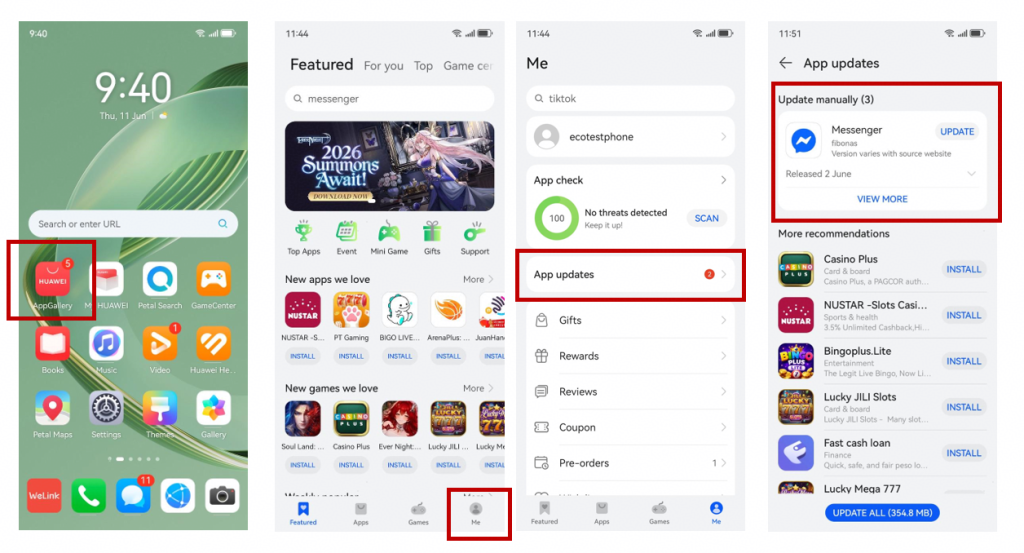
The fastest way to keep Huawei Messenger current is through Huawei AppGallery. Open AppGallery, tap Me in the lower-right corner, then choose App updates. Find Messenger and tap Update. If the app is already listed as current, refresh the page once and check again after a few minutes. Sometimes the update queue needs a moment to sync. If you want the original community reference, see Huawei Messenger.
Install Messenger for the First Time
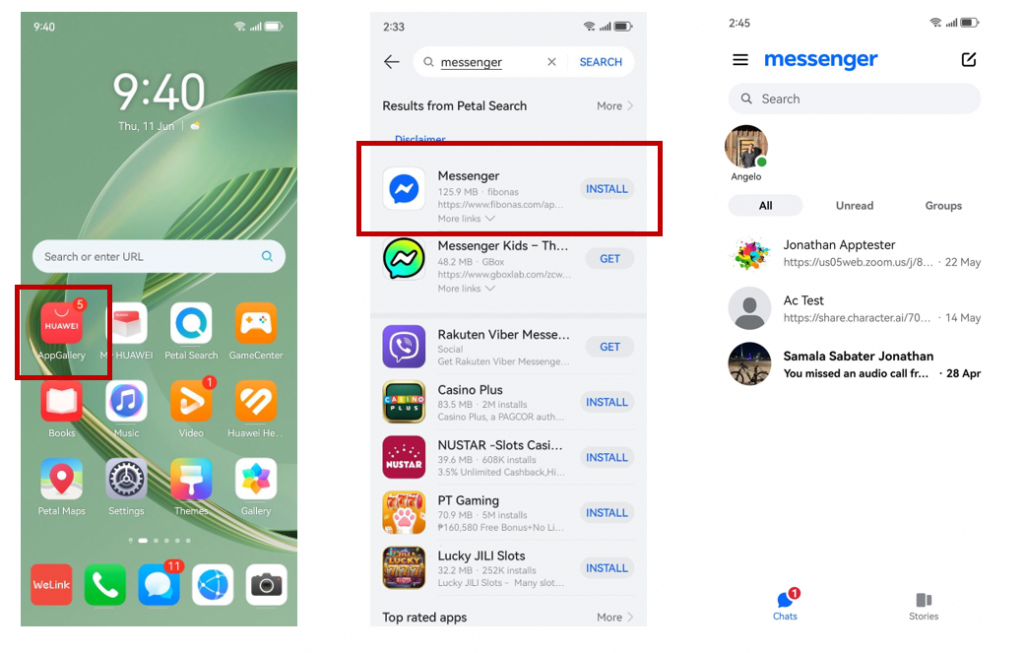
If Messenger is not on the device yet, search for it directly in AppGallery. Tap Install and wait for the download to finish. Once the app opens, sign in and allow the basic permissions it needs to work properly. For users who prefer a workaround, GBox can also be used to install or access apps that are not available in the store. The community discussion around that option is here: Huawei Messenger. Keep in mind that AppGallery remains the most straightforward choice for most Huawei users.
Fix Common Update Problems
When Huawei Messenger refuses to update, the cause is often the download source. If the app was installed elsewhere, remove it and reinstall from AppGallery so the version history stays clean. If the update stalls, restart the phone, reopen AppGallery, and try again on a stable connection. A second issue is storage. Low space can block a normal update even when the app looks small. Clear a little room, then repeat the process. If the problem continues, check whether the system software is outdated, because app updates can depend on the device firmware staying current.
Keep the Device Ready
A stable Huawei Messenger experience depends on a few simple settings. First, go to Settings, then System & updates, and open Software update to confirm the phone is running the latest version. Second, check Notifications & status bar, search for Messenger, and make sure notifications are allowed. That step matters if messages are arriving but alerts are silent. If Messenger still behaves unpredictably, clear cache only after trying the basic route above. That keeps troubleshooting focused and avoids unnecessary changes. In most cases, the app itself is fine; the device settings are what interrupt the experience.
FAQs
What if Messenger notifications are missing on Huawei? Open Settings, go to Notifications & status bar, search for Messenger, and turn on Allow notifications. What if an app is not listed in the Huawei store? AppGallery should always be the first stop. If the app still does not appear, GBox may help with installation, but it is worth checking the AppGallery listing again before switching tools. Is Messenger supported on Huawei devices? Yes, and the main difference is how you install, update, and manage it. Once AppGallery is up to date and the notification settings are allowed, Huawei Messenger usually works as expected. Need a reference while you walk through the steps? Open Huawei Messenger for the community thread and compare the screenshots with your own device.